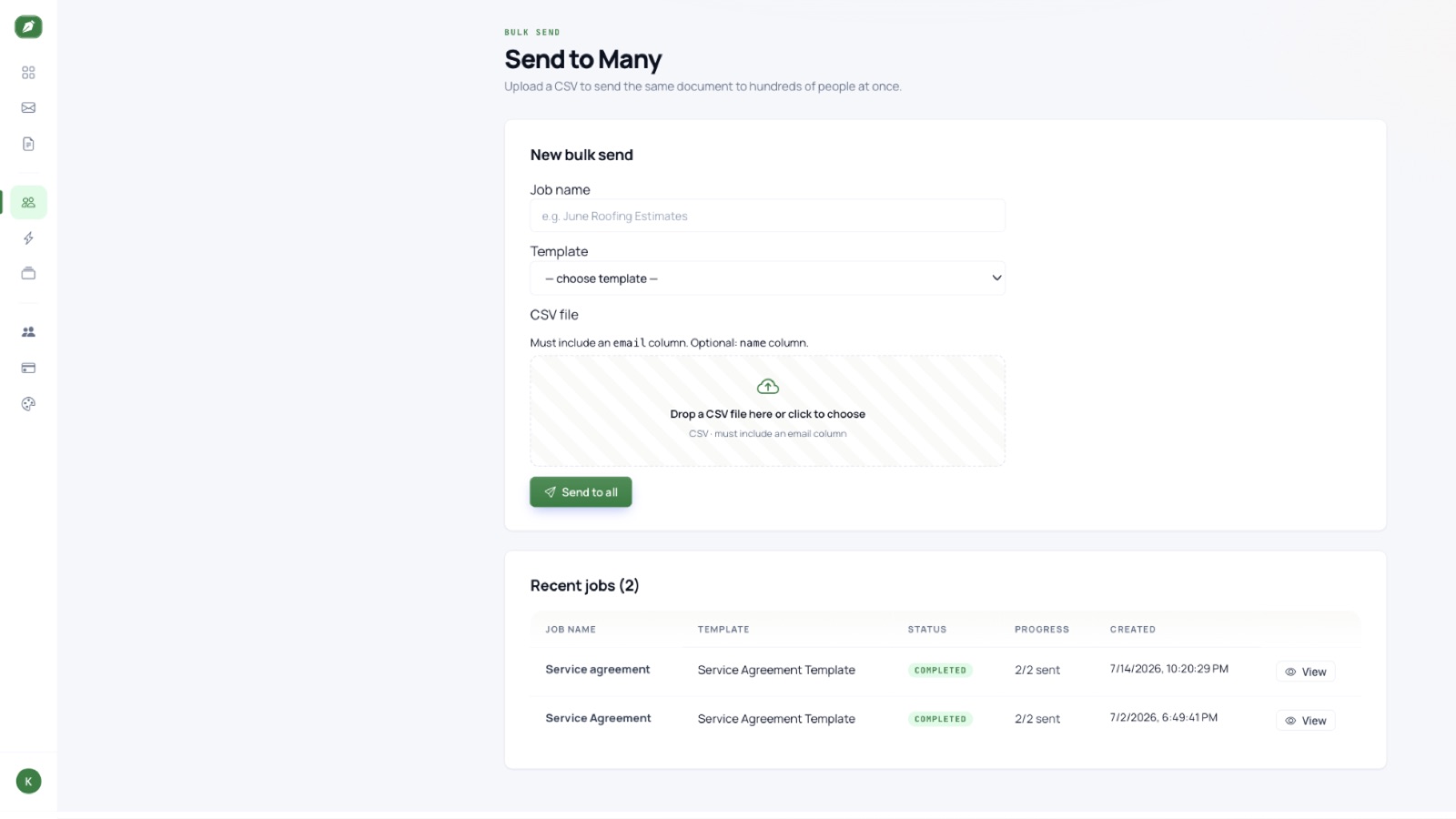
What Bulk Send Actually Does
GSD's Business tier includes a bulk CSV send feature designed for situations where you need to send the same document to many people, each requiring personalized details. Instead of sending each document individually, bulk send allows you to upload a single CSV file with one row per recipient. GSD then processes this file to generate a separate, individually addressed signature request for each row. Every signer receives their own document, a unique signing link, and a dedicated audit trail. The resulting signatures are legally binding electronic signatures, compliant with ESIGN and UETA (US).
The Business tier is available at $49/month.
Building a CSV That Won't Break on Upload
Most bulk send failures occur due to an incorrectly formatted CSV file. Here's how to prepare your CSV correctly before uploading.
1. Nail the Required Columns First
Your CSV must include specific identifying fields for each recipient so the platform can properly address and route the document.[6] Always consult the GSD documentation for the exact required column names before you start building your file.
Beyond the required fields, you can add optional columns to personalize each send. Depending on your workflow, these could include a custom message for each recipient, a distinct document title per row, or other recipient-specific values.[7]
2. Keep Column Headers Clean and Consistent
Use clear, descriptive column headers that match the naming conventions expected by the platform.[25] This helps prevent header mismatches that can lead to silent import failures.
3. Check Your File Encoding
Verify the encoding setting your spreadsheet application uses when exporting to CSV. Most applications allow you to choose encoding during the export process. Check these export settings instead of assuming the default is correct.
4. Handle Commas and Special Characters Inside Fields
Fields that contain line breaks or double-quote characters should be wrapped in double quotes. If a double-quote character appears inside the field, escape it by placing a second double quote immediately before it.[5] Refer to the GSD documentation for guidance on handling other special characters within field values.
5. Watch for Formatting Errors at the End of Rows
Formatting issues at the end of rows or at the end of the file are a common cause of import errors.[1] Before uploading, open the raw file in a plain text editor and carefully examine the final characters of each row and the final line of the file.
6. Email Address Rules
- Each recipient must have a unique email address.[28]
- A minimum of two unique email addresses is required for the bulk send operation to proceed.[27]
- The sender's own email address cannot be included in the CSV.[26]
Populating Document Fields from the CSV
If your document template contains fillable fields—such as a project value, a start date, or a client company name—you can pre-populate these fields directly from your CSV. This saves you from leaving them blank for each signer to complete.[22][23][24] Consult the GSD documentation for the exact column naming conventions required to map CSV values to your template fields.
A Pre-Upload Checklist
Before uploading your CSV, review this checklist:
- Required recipient identifier columns are present[6]
- File encoding verified in your export settings
- Values containing line breaks or double quotes are wrapped and escaped[5]
- No formatting errors at the end of any row or the file[1]
- Every email address is unique; sender email is not included[26][27][28]
- Column headers match the naming conventions expected by the platform[25]
After the Send
Once GSD processes your CSV and dispatches the documents, each completed document is protected with SHA-256 tamper-evidence. Every transaction also generates a Certificate of Completion that includes a full audit trail—timestamps and IP addresses for every action taken on the document. This audit trail provides bulk-sent documents with the same evidentiary weight as individually sent ones.
Bulk send is a valuable tool for professionals like tax preparers distributing engagement letters, contractors sending subcontractor agreements, and agencies distributing client authorization forms. The CSV format is straightforward once you understand its rules. Get the file structure right the first time, and the rest of the process will be efficient.
Sources
- Create the CSV form used to Send in Bulk | Adobe Acrobat Sign
- RFC
- Bulk Send Documents for mass signing | Legalesign Documentation
- Bulk Send Documents for mass signing | Legalesign Documentation
- How to automatically populate a document with multiple custom fields from .csv | Community
- How to automatically populate a document with multiple custom fields from .csv | Community
- Bulk Send With Document Generation
- Campaign Management | SignNXT Documentation
- Create the CSV form used to Send in Bulk | Adobe Acrobat Sign
- Create the CSV form used to Send in Bulk | Adobe Acrobat Sign
- Send documents in bulk | Help Center
Ready to get signing done? Start free with 5 documents a month and no credit card, or browse the e-signature guides.